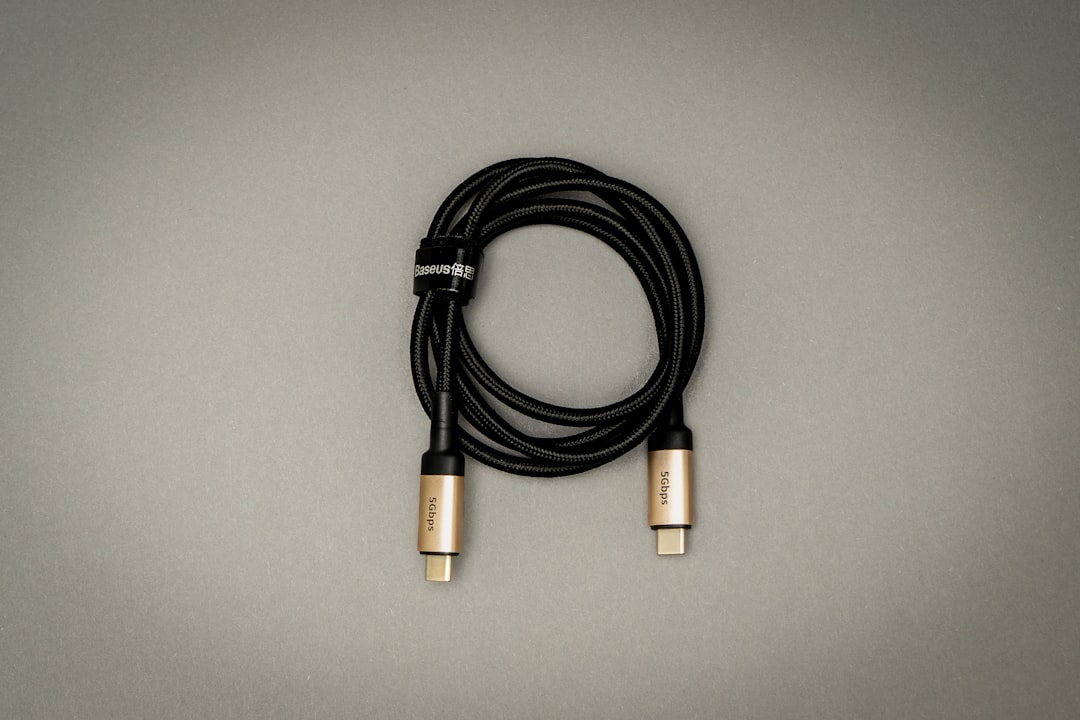
Start with the task: charging, transferring files, or connecting a display. A matching plug is only the beginning.
Try the interactive guide: USB-C Compatibility Finder helps you choose between charging, display output, data transfer, and docking needs.
Write down both endpoints
Make a small connection map before shopping: device, destination, task, and required length. A phone-to-charger connection is a different purchase from a laptop-to-monitor connection. Read the specifications for the actual ports you plan to use, rather than treating every port on the device as identical. Keep the exact device model numbers in your notes so a seller can answer a precise compatibility question.
Compare the missing information
Look for separate statements about power, data transfer, and display support. If a listing says only “fast,” ask what that means for your setup. USB Power Delivery is a charging specification; a power claim by itself does not establish the capabilities needed for your display or file-transfer task. Prefer an explicitly supported combination over assumptions based on connector shape.
Choose length and construction deliberately
Measure the route from the outlet or computer to the device, including bends and the space you need to move it. An unnecessarily long cable can make a travel kit awkward, while one that is too short puts tension on the connector. Look at strain relief and the return policy. Braiding and a premium finish do not independently demonstrate compatibility.
Test the intended task during the return window
Keep your previous working cable as a reference. Try the new cable with the same devices and the same task, changing only one part of the setup. Label a cable once you know its intended role so it does not get mixed into an unmarked drawer. Save the listing and receipt; they are more useful for a future support request than a photograph of the packaging alone.
A cable-shopping example
Imagine one cable is needed to charge a laptop and another is needed to move camera files to an external drive. Make two separate requirements: the charging power and protocol requested by the laptop, and the data-transfer capability required by the storage connection. A high-wattage charging label does not answer the second requirement. If you also want a monitor connection, add explicit video support to the list. Our portable monitor setup checklist helps you check the screen, host device, and cable as one setup.
Keep a short label on each tested cable: “desk display,” “phone charging,” or “backup drive.” This is an organizational suggestion, not a certification. If a cable fails the task for which it was bought, preserve the listing and return it within the terms instead of silently moving it to another role and forgetting why it failed.
Sources & method
AI-assisted editorial guidance checked against the primary references below. Examples are illustrative exercises, not results from product tests. No hands-on testing or independent performance measurement is claimed.