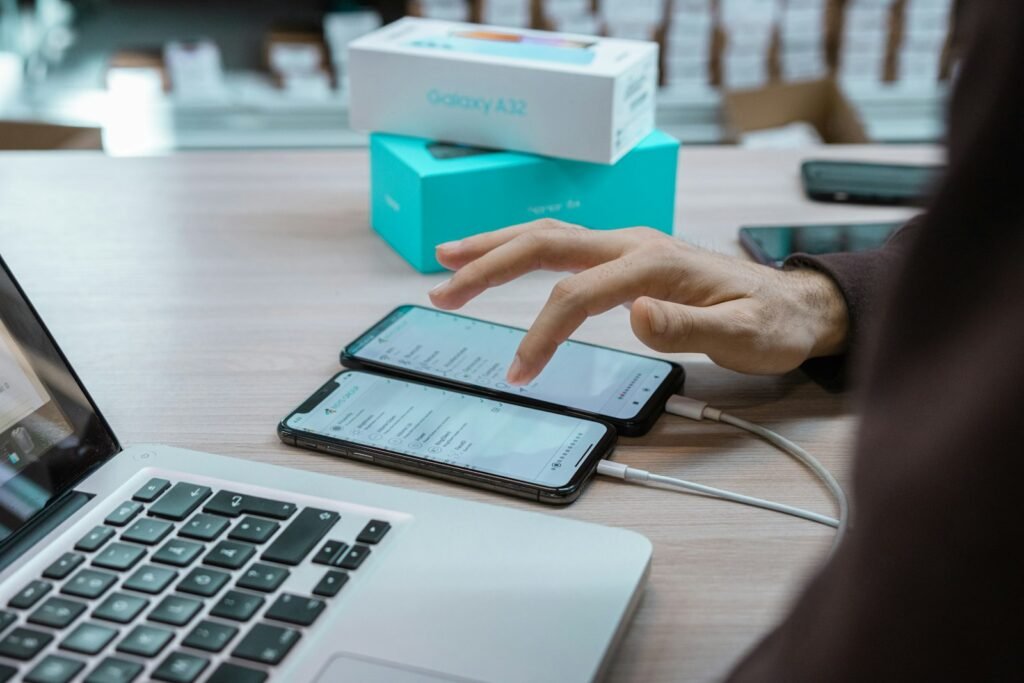
The safest time to erase an old phone is not immediately after the new one lights up. It is after you have proved that the information you rely on actually made the trip.
A successful-looking transfer screen can still leave behind an authenticator app, an offline file, a transit card or an eSIM detail. Whether the phone is headed to a trade-in counter, an online buyer or a relative, use this order: back up, transfer, test, disconnect accounts, erase, then inspect the welcome screen.
The 10-minute pre-erase check
- Open recent photos and videos on the new phone.
- Check contacts, notes, calendars and downloaded files.
- Test calls, texts and mobile data.
- Open banking, password-manager and authenticator apps.
- Confirm chat history in apps where backups are handled separately.
- Move or remove the physical SIM, microSD card and paired wearables.
Do not use the old phone as the only place to discover that the new setup is incomplete. Keep it nearby, charged and connected until those checks pass.
Back up before touching account settings
For an iPhone, create a current iCloud backup or an encrypted computer backup, then use Quick Start or Apple’s other transfer method. Apple specifically warns against manually deleting photos, contacts and other synced items while still signed into iCloud: doing so can delete them from iCloud and connected devices, not just from the phone being sold.
On Android, review Settings under Google, System or Backup—the exact path varies—and confirm the most recent backup time. App data is not uniform. Some apps restore automatically, some require their own cloud backup, and security apps may require a fresh enrollment.
Test the accounts that can lock you out
Sign in to your main Apple or Google account from another trusted device or browser. Check that its recovery email and trusted phone number are current. If you changed numbers during the upgrade, update recovery details before surrendering the old SIM.
Then inspect two-factor authentication. Export or transfer authenticator accounts using the provider’s supported process, save fresh recovery codes somewhere secure and confirm that passkeys are synchronized or otherwise available. A passkey stored only on the old device is a poor surprise after a factory reset.
Banking and payment apps may treat the new phone as a new security device. Complete their verification while you can still receive prompts or codes on the old setup.
Handle the SIM and eSIM deliberately
Remove a physical SIM and any microSD card. For eSIM, first confirm that service works on the new phone. Apple says that when selling an eSIM-equipped iPhone, users should choose the option to erase both the device and the eSIM profile when prompted. Carrier procedures vary, so do not delete the old profile before the transfer is confirmed.
If moving from iPhone to Android, Apple also advises deregistering iMessage so messages do not continue routing to the old Apple setup.
iPhone: disconnect the services tied to the device
- Unpair an Apple Watch, if one is paired. This also creates a current watch backup.
- Review AppleCare and decide whether to cancel it or transfer it when eligible.
- Sign out of the Apple Account using Apple’s instructions for the installed iOS version.
- Open Settings, choose General, then Transfer or Reset iPhone, and select Erase All Content and Settings.
- Enter the device and Apple Account credentials when requested. A proper erase turns off Find My and Activation Lock.
- Afterward, verify that the phone no longer appears as an active trusted device where appropriate.
Do not simply delete photos and hand over the phone. The formal erase flow is what removes personal data and releases account protections correctly.
Android: remove the account, then use the official reset
Menu names differ by Samsung, Pixel, Motorola and other brands, so follow the manufacturer’s instructions for the exact model. Before resetting, know the Google Account username and password already on the device, as well as its screen-lock PIN. Google advises waiting 24 hours before a reset if the Google Account password was changed recently.
For a phone being transferred to another owner, remove Google and manufacturer accounts through Settings before using the factory-reset command. This helps prevent the next owner from meeting an anti-theft verification screen tied to your account. Then reset through Settings rather than relying on a quick manual deletion of files.
Google notes that a factory reset erases phone data and uninstalls apps, but a remote erase may not delete an SD card. Remove removable storage yourself.
Do one final inspection
When the reset finishes, the phone should display its first-time setup or welcome screen—not your lock screen, home screen, email address or photo library. Do not continue through setup with your own account.
Record the serial number or IMEI for the trade-in receipt, shipment or bill of sale, while keeping that identifier out of public marketplace photos. Photograph the phone’s condition and packaging before shipping. Use tracked delivery for a valuable device.
If the old phone is already gone
Act quickly, but understand the limits. Apple recommends asking the new owner to erase the device or using Find Devices for a lost device, then removing it from trusted devices and securing the Apple Account. Android’s Find Hub can locate, secure or erase a connected device, but Google notes that a factory-reset device will no longer remain available in Find Hub.
A remote erase is a recovery measure, not a substitute for preparing the phone while it is in your hand. If sensitive accounts were still signed in, change important passwords, review active sessions and contact the carrier when the SIM or phone itself is missing.
The handoff rule
Do not hand over the device until three things are true: the new phone contains what you need, the old phone shows the welcome screen, and account locks are no longer attached to the buyer’s device. That sequence protects your data and prevents a frustrating return or rejected trade-in.
Featured image: NSYS Group/Unsplash. The photographs illustrate preparation and resale checks; they do not document a test performed by Gadget N Widget.
Sources and editorial note
This guide was checked September 13, 2026 against Apple’s official pre-sale and trade-in instructions, Google’s Android factory-reset guidance and Google’s Find Hub documentation. Device menus, carrier procedures and trade-in requirements can change. AI tools assisted with research organization and copy editing; the article was reviewed for accuracy and makes no hands-on claim.