A new phone should not leave you locked out of your email. Before you trade in the old one, spend a few minutes checking how your passkeys will work without it.
The short answer: a passkey can replace typing a password, but you still need a plan for losing your device or accessing your account from somewhere else. Start with one account, confirm a second way in, and only then retire the old phone.
Practical explainer · Sources checked September 12, 2026. This is not a product-launch announcement.
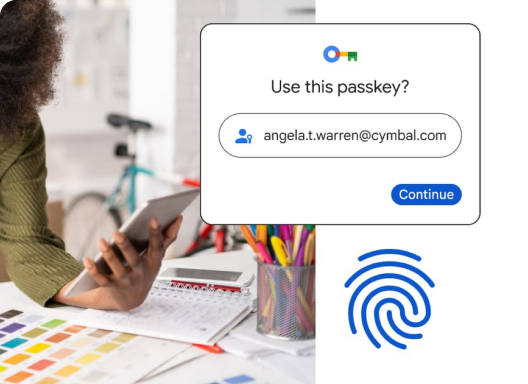
Featured illustration: Google for Developers, CC BY 4.0. Unmodified illustrative artwork; actual screens vary.
What changes when you use a passkey?
A passkey is a digital credential for a particular account and website or app. Your device asks you to approve its use with an unlock method such as a fingerprint, face check or PIN. The service stores a public key rather than a reusable password. Because passkeys are tied to the correct site or app, they resist the fake-login-page trick used in password phishing. See Google’s technical introduction.
Think of the unlock step as permission to use the credential—not as sending your fingerprint to a website. FIDO Alliance explains that biometric information stays on the device. It also distinguishes synced passkeys, available through a passkey provider, from device-bound ones that remain on a particular device or security key.
Before you change phones, answer these three questions
- Where did I save this passkey? Look in the credential manager you actually used, not simply the one preinstalled on the new phone. Write down the provider’s name and the account it belongs to; do not record secret recovery codes in an ordinary checklist.
- Can I use it away from the old phone? Try signing in on the replacement device while the old one is still available. A successful sign-in on your everyday phone is not the same as a successful migration.
- What if neither phone is available? Review the service’s official recovery options now. Our recommendation is to avoid a plan whose every step depends on the device you are trying to replace.
FIDO describes syncing through the same passkey provider and account. Do not assume that buying another phone automatically puts every credential on it, especially when switching providers. A device-bound key needs a different plan from a synced one.
A cautious first setup with a personal Google Account
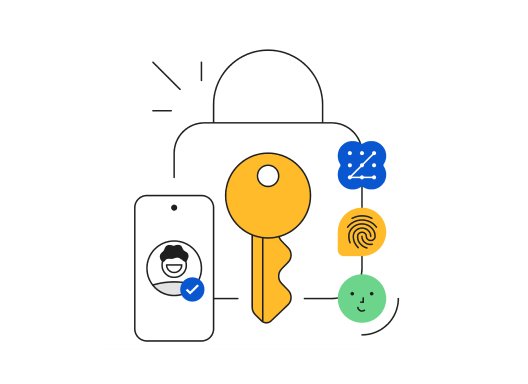
Use your own device with screen lock enabled. Open Google’s passkey settings, check the account name, and follow the creation prompts. Google warns against creating passkeys on shared devices. Adding one does not remove your existing authentication or recovery factors.
For computer sign-in using a phone’s passkey, Google documents a “Try another way” flow with a QR code. Bluetooth needs to be on; approve the sign-in on your phone. Follow the current Google instructions, since screens and account restrictions can differ.
Try a rehearsal, not a lockout experiment
Here is an illustrative example: you have an old phone, a new phone and a laptop. Keep the old phone signed in. On the laptop, open a separate browser profile and attempt the account’s normal sign-in. Then check access from the new phone. Stop if either route fails; do not erase the old device to “see what happens.”
Record the outcome in three plain notes: “new phone works,” “second route works,” and “recovery instructions located.” These are our suggested checks, not a guarantee that every future recovery attempt will succeed.
If the old phone is lost
Google says to remove a lost device’s passkey from your account. Automatically created Android passkeys have a device sign-out procedure; follow the linked help page rather than assuming every entry is removed the same way. If you cannot sign in, use the service’s official recovery process.
The useful finish line is not “I enabled passkeys everywhere.” It is “I know how to get in, and I know what to do if this phone disappears.”
Editorial disclosure: Prepared with AI assistance and reviewed against the linked primary documentation. No hands-on testing is claimed. The rehearsal and checklist are editorial suggestions; provider rules and recovery outcomes vary. Google artwork is illustrative, not evidence of independent testing.