A laptop battery rarely fails overnight. More often, it fades quietly: the machine that once lasted through a meeting starts hunting for an outlet by lunch. Some wear is unavoidable, but heat, long periods at full charge and repeated deep discharges can accelerate it.
The useful goal is not to obey a rigid charging ritual. It is to reduce the stressful conditions that occur most often without turning battery care into a second job.
The short version
- Keep the laptop cool, especially while it is charging.
- Use the built-in smart-charging or charge-limit feature if the computer spends most days plugged in.
- Avoid repeatedly running the battery to zero.
- Charge to 100% when you genuinely need the range; an occasional full charge is not a crisis.
- If the case, trackpad or keyboard begins to bulge, stop using the computer and arrange service.
Heat deserves first attention
Battery advice often becomes an argument about whether 80% or 100% is the “correct” number. Temperature matters just as much in everyday use. Microsoft warns that charging or using a device at high temperatures can permanently reduce lithium-ion capacity. Apple likewise says chemical aging reflects both charging patterns and temperature history.
That makes a few ordinary habits worthwhile. Do not charge a laptop under a blanket, on a soft couch cushion or inside a closed bag. Give its vents room. If gaming, rendering video or running another sustained workload makes the computer hot, a hard surface and unobstructed airflow are more useful than obsessively unplugging at an exact percentage.
Use the limit your laptop already offers
On Windows laptops, the feature may be called Smart charging, Conservation Mode, Battery Care, Battery Health Manager or something similar. It may live in Windows Settings, a manufacturer app or the BIOS. Availability and behavior depend on the model.
Microsoft recommends keeping the battery in a moderate range—roughly 20% to 80%—when practical, and enabling Smart charging on supported devices. The important phrase is “when practical.” If tomorrow involves a flight or a long day away from power, charge fully and use the battery you bought.
On a Mac, Optimized Battery Charging can delay charging beyond 80% when macOS predicts the computer will stay connected to power. Apple says macOS Tahoe 26.4 or later also offers an adjustable 80%–100% Charge Limit on Apple-silicon Macs. The Mac may still charge to 100% occasionally so its battery estimate remains accurate.

What if the laptop stays plugged in?
You do not need to conduct a daily unplug-and-replug ceremony. Modern laptops manage charging electronically; the more useful step is to enable the manufacturer’s battery-preservation setting if your routine is mostly desk-bound. A lower charge ceiling reduces time spent sitting completely full, while the wall adapter powers the computer as designed.
Before travel, temporarily select “charge to full” or raise the limit. Remember to restore the lower ceiling afterward if the laptop returns to desk duty.
Deep discharge is not maintenance
Old advice about routinely draining a battery to zero came from different battery chemistries. Microsoft explicitly recommends avoiding frequent deep discharges for modern lithium-ion devices. Plugging in at 30% or 40% is fine. So is adding a short top-up between meetings.
If the battery percentage becomes obviously inaccurate—perhaps the laptop shuts down while reporting substantial charge—follow the maker’s diagnostic or calibration procedure for that exact model. Do not make zero-percent runs a weekly habit.
Check battery health before buying a replacement
Windows 11 can produce a local report. Open Command Prompt as administrator, run powercfg /batteryreport, then open the HTML file at the location shown. Compare “design capacity” with “full charge capacity,” but do not judge the battery from a single number alone. Sudden shutdowns, rapid percentage drops and sharply shorter unplugged time matter too.
On a Mac, open System Settings, choose Battery, then inspect Battery Health. Cycle count is available in System Information. A battery marked for service deserves more weight than internet rules about a particular cycle number.
When safety overrides optimization
A swollen battery is not merely an aging battery. Warning signs can include a raised trackpad, a case that no longer closes evenly, a distorted keyboard or pressure separating the chassis. Microsoft advises stopping use immediately if a battery expands beyond the device enclosure. Do not press it flat or puncture it. Disconnect power if it is safe to do so, move the machine away from flammable material and contact the manufacturer or a qualified repair provider.
A realistic weekly routine
- Leave smart charging or an appropriate charge limit enabled for desk-heavy use.
- Before a mobile day, allow a full charge without guilt.
- Keep vents clear and avoid hot cars, direct sun and soft bedding.
- Do not deliberately drain to zero.
- Review battery health only when runtime changes noticeably—or every few months, not every afternoon.
These habits cannot stop chemical aging, and they cannot guarantee a particular lifespan. They can, however, remove avoidable stress while leaving the laptop useful. That is a better trade than preserving a perfect battery percentage at the cost of constantly managing the computer.
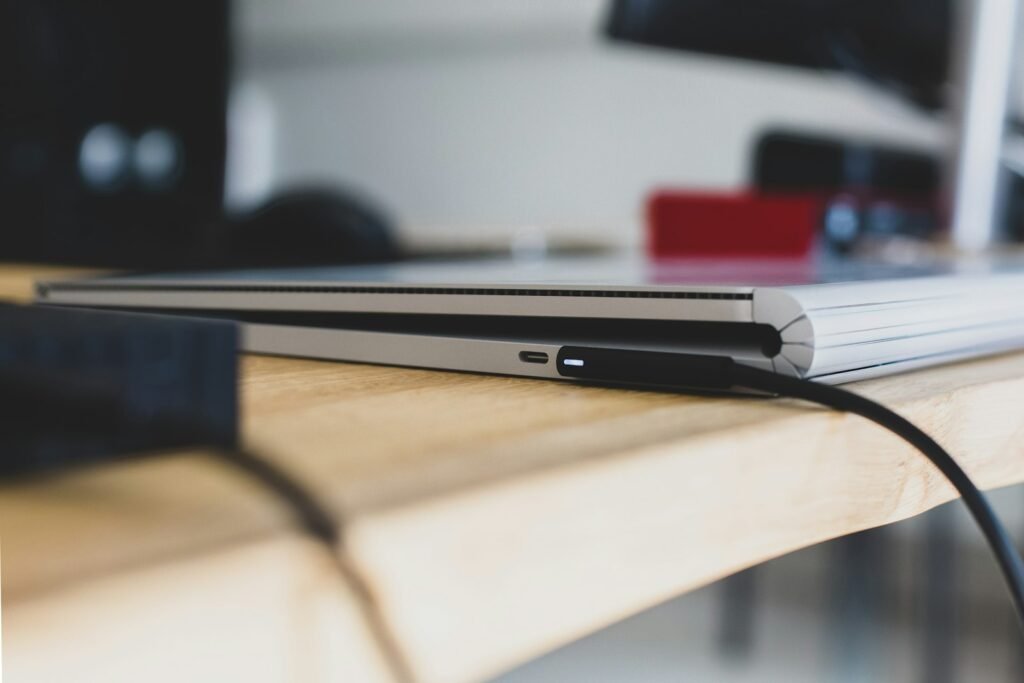
Featured photo: Bram Van Oost/Unsplash.
Sources and editorial note
This guide was checked on September 13, 2026 against Microsoft’s Windows battery-care guidance and Apple’s Mac charging documentation. Menu names and feature availability vary by model and software version. AI tools assisted with research organization and copy editing; the article was reviewed for accuracy and does not claim hands-on testing.