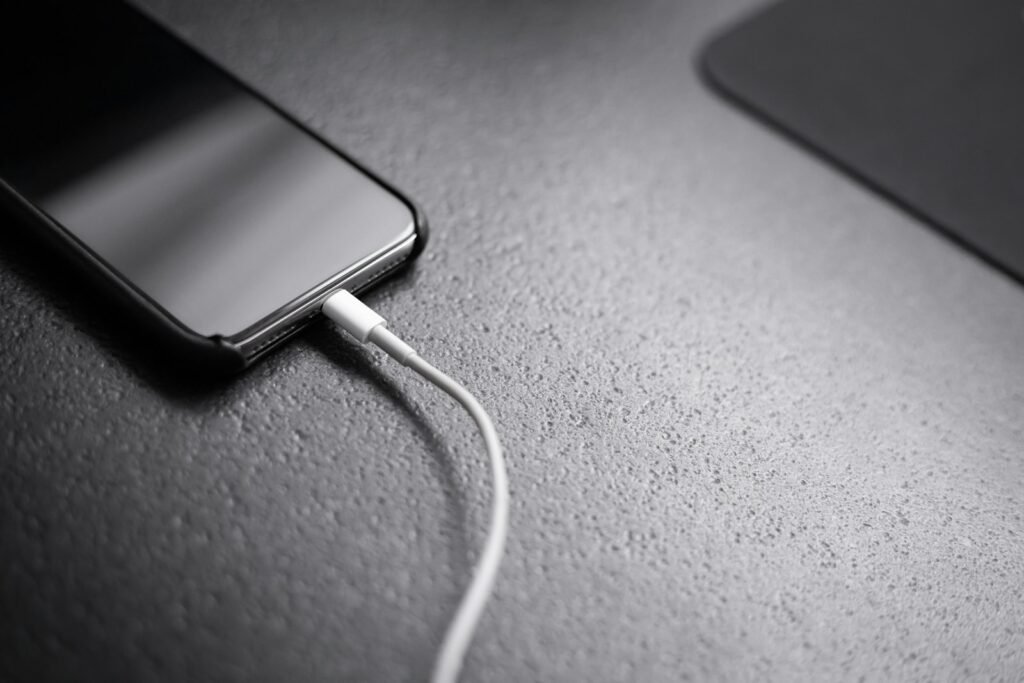
Two USB‑C cables can look identical and behave very differently. One may fast-charge a laptop, another may only charge a phone slowly, and a third may carry a monitor signal. The oval plug tells you the connector shape—not the cable’s power, data or video abilities.
Before buying, match three things separately: the device’s charging requirement, the power adapter’s output and the cable’s rating.
Start with the device, not the biggest number
Find the recommended wattage and charging standard in the device maker’s specifications. A phone that accepts roughly 20W will not suddenly pull 100W because it is connected to a 100W charger. USB Power Delivery devices negotiate for compatible power rather than blindly receiving the charger’s maximum.
A higher-rated USB‑C PD charger is therefore often safe for a lower-power compatible device, while a charger that is too small may work slowly or fail to keep a laptop charged during heavy use. Proprietary fast-charging systems can be different, so check the maker’s exact requirement if maximum speed matters.
Look for USB Power Delivery—and PPS when required
USB Power Delivery, usually written USB PD, is the common fast-charging standard used by many phones, tablets and laptops. Google says current Pixel phones can use PPS adapters rated at 30W or more, or other USB PD adapters rated at 15W or more; the exact maximum depends on the Pixel model. Apple says a comparable third-party USB‑C adapter supporting USB PD can fast-charge compatible iPhones.
PPS means Programmable Power Supply. It lets a compatible charger adjust voltage in smaller steps. Some Android phones use it for their best wired charging performance. A charger can support USB PD without supporting PPS, so read the detailed specifications rather than assuming.
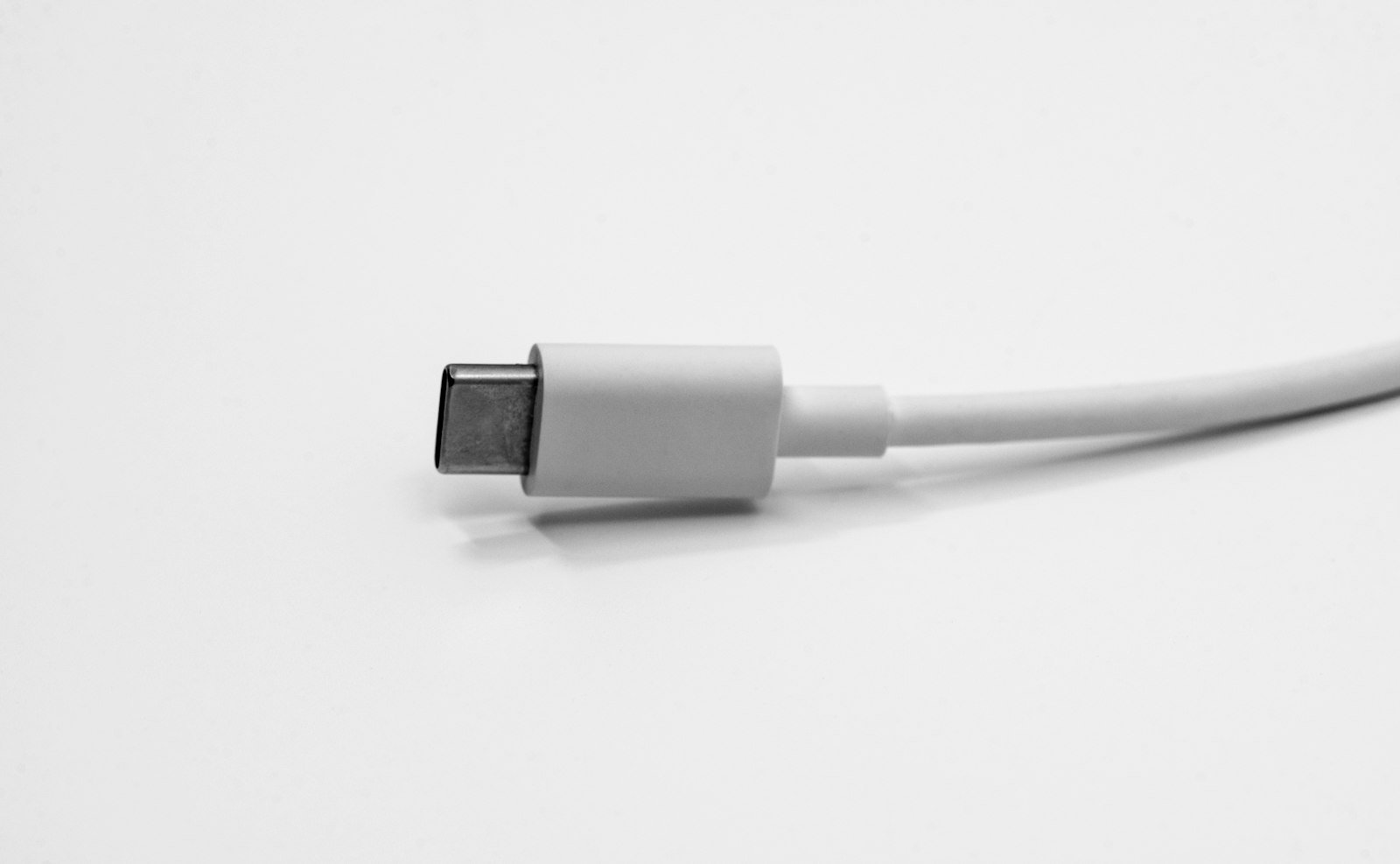
The cable can become the bottleneck
For ordinary phone charging, a basic good-quality USB‑C cable may be enough. Higher-power laptops need a cable rated for the required wattage. USB‑IF’s current Power Delivery specification allows up to 240W with appropriately designed USB‑C equipment, but that does not mean every USB‑C cable supports 240W.
Look for a clear 60W, 100W or 240W rating from a reputable seller. High-current cables use an electronic marker, often called an e-marker, to identify their capability. If the listing only says “fast charging” without a wattage or supported standard, it is not giving you enough information.
Charging speed and data speed are separate
A cable advertised for 100W charging may still transfer data only at USB 2.0 speed. That is acceptable for charging a laptop, but frustrating for moving large video files or connecting a fast external SSD.
If you need data, look for an actual rate such as 5Gbps, 10Gbps, 20Gbps, 40Gbps or 80Gbps. Do not rely only on labels such as “USB 3.2,” which can be confusing across generations. The slowest part of the connection—the computer port, cable, hub or drive—sets the final speed.
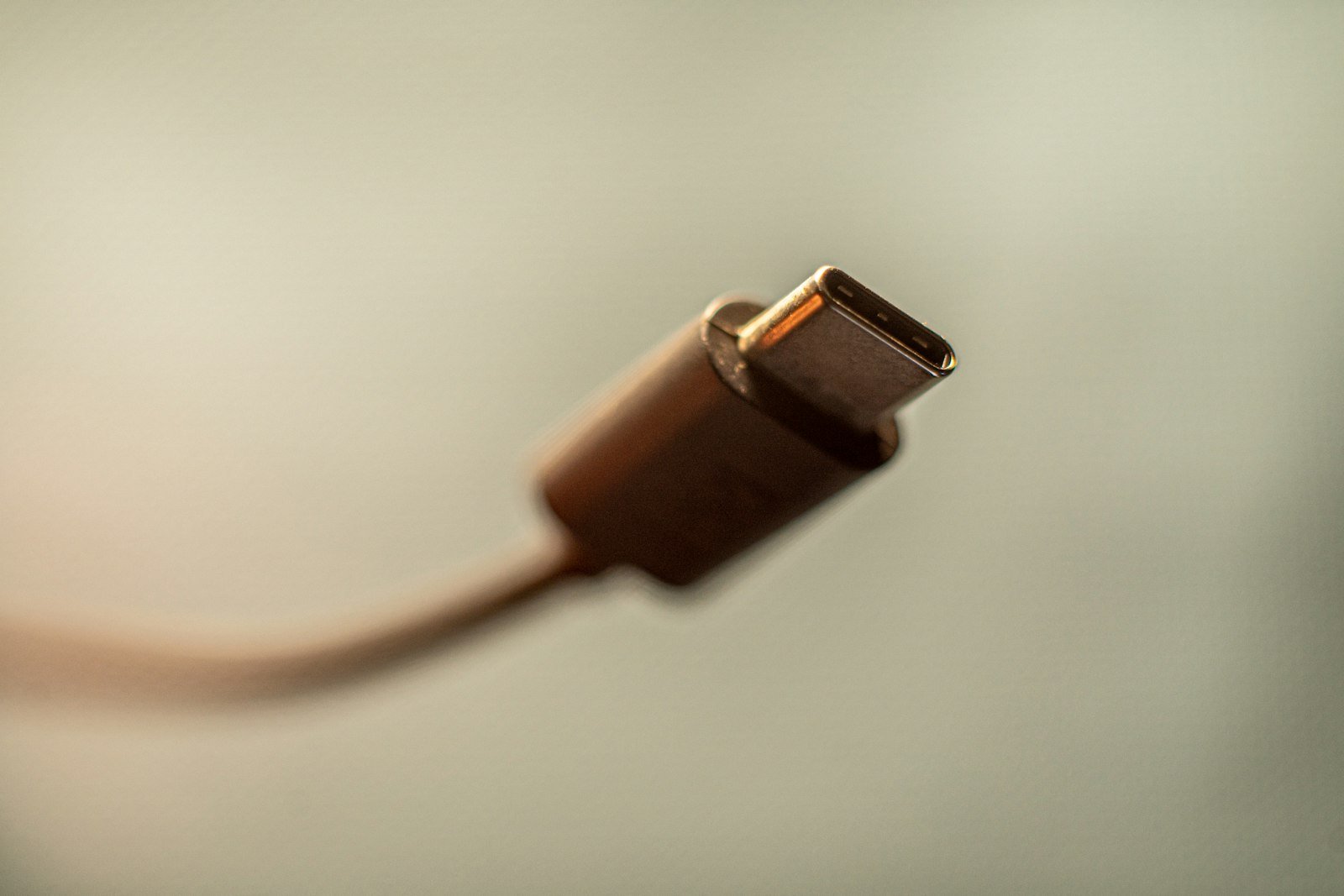
USB‑C does not automatically mean monitor support
To connect a display, the computer or phone port must support video output, the cable must carry the required signal, and any hub or adapter must support the desired resolution and refresh rate. Look for DisplayPort Alt Mode, USB4 or Thunderbolt support in the device specifications.
A charging-only USB‑C port or cable cannot be converted into a video connection by a simple adapter. If a monitor works at 30Hz but not 60Hz, check the bandwidth limits of every link, including the cable and hub.
One charger for several devices
A multi-port charger can replace several bricks, but its headline wattage is usually the total. A “100W” charger may provide 100W from one port when used alone, then split power differently when a second device is connected. Check the manufacturer’s port-allocation table.
For travel, add together what you will charge at the same time—not the maximum printed on every device. A 65W or 100W PD charger may cover a laptop and phone, but only if its port split supplies enough power to the laptop.
Safety and warning signs
- Choose certified products from a seller with traceable specifications and a return policy.
- Stop using a cable with exposed conductors, a loose connector, discoloration or unusual heat.
- Do not cover a power adapter or charge it on bedding where heat can build up.
- If charging repeatedly starts and stops, test another known-good cable and adapter.
- Heat can reduce charging speed. Apple and Google both note that devices may slow or pause charging when too hot.
A shopping checklist
- Write down the device’s recommended wattage and charging protocol.
- Choose a USB PD charger with enough output; add PPS if the device uses it.
- Check each port’s output, not only the charger’s total wattage.
- Match the cable’s wattage to the device.
- If you transfer files, verify a stated data rate.
- If you use a monitor, verify video support and required bandwidth.
- Prefer clear certification and warranty information over vague “ultra-fast” claims.
The cheapest sensible setup is not always the cable with the highest numbers. It is the one whose power, data and video capabilities match what you will actually connect.
Sources
- USB Implementers Forum: USB Power Delivery
- Apple Support: Fast charge your iPhone (published March 24, 2026)
- Google Pixel Help: Charge your Pixel phone
Editorial disclosure: This guide was prepared with AI assistance and reviewed against the linked primary documentation. It does not claim hands-on testing of any charger or cable.