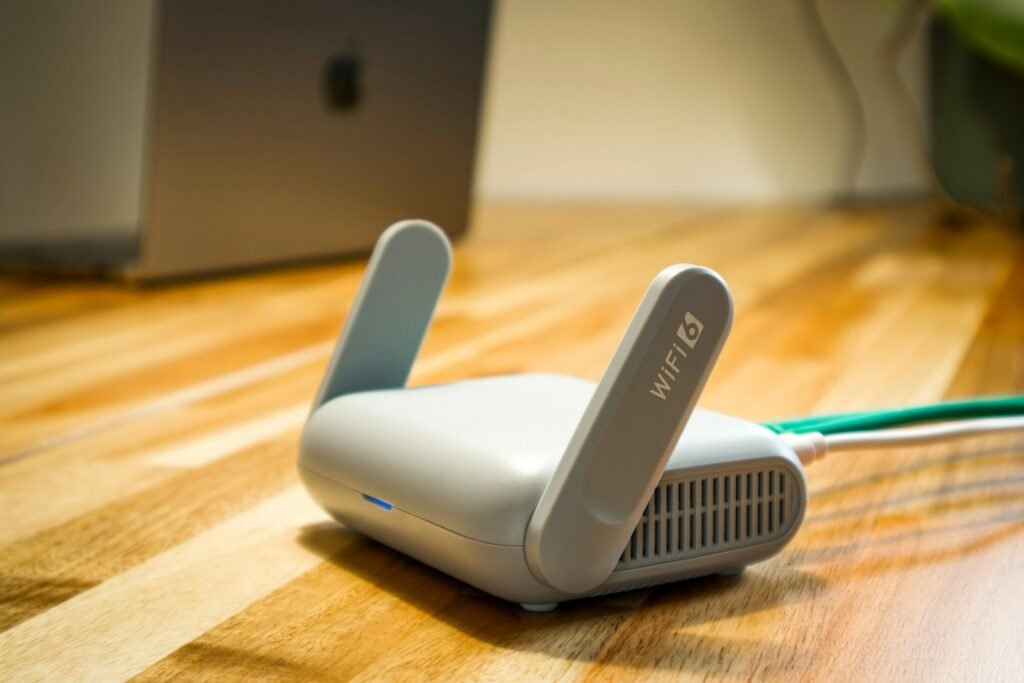
A slow video call in the back bedroom does not automatically mean your internet plan is too small. Often, the connection entering the home is fine and the weak link is the short radio journey between your router and the device.
This guide helps you separate those two problems, improve coverage without buying anything, and decide when a mesh system or Ethernet cable is actually worth it.
Start with three speed tests
Use the same phone or laptop and the same speed-test service for each check. First test beside the router over Wi‑Fi. Then test in the room where service is poor. If possible, run a third test on a computer connected directly to the router by Ethernet.
- Ethernet is slow too: the modem, provider, plan, cable or router may be the limit.
- Near-router Wi‑Fi is fast, but the problem room is slow: focus on placement and coverage.
- Only one device is slow: update and restart that device before rebuilding the network.
Repeat the tests at a quiet time and a busy time. A single result can be distorted by an update, cloud backup or another person streaming.
Move the router before buying a faster one
Put the router in the open, near the center of the area that needs service, and roughly at eye level. Google’s setup guidance says its primary Wi‑Fi point should be in plain view and elevated, such as on a shelf or TV stand. That advice applies broadly because Wi‑Fi signals lose strength as they pass through walls, floors and objects.
Avoid hiding the router in a cabinet, placing it on the floor or tucking it behind a television. Keep it away from large metal objects, dense masonry, aquariums and appliances that create radio noise. A microwave can be especially troublesome for devices using 2.4 GHz while it is running.
Your modem connection may dictate an awkward corner. A longer Ethernet cable between the modem and router can sometimes move the router to a much better location for less than the cost of new hardware.
Understand the bands without micromanaging them
In broad terms, 2.4 GHz travels farther and penetrates obstacles better, while 5 GHz and 6 GHz can offer more capacity at shorter range. Modern routers often place the bands under one network name and steer devices automatically. Leave that feature alone unless a particular smart-home device or older gadget cannot complete setup.
Changing channels manually can help in a crowded apartment building, but automatic channel selection is usually the safer starting point. If you do experiment, record the old setting and compare results in the same locations rather than judging from the signal icon alone.
Place mesh points where they can still hear the router
A mesh point cannot repair a signal it barely receives. Do not put the extra unit in the dead zone. Start about halfway between the main router and the problem area, in an open position. Use the maker’s app to confirm that the link between units is healthy, then adjust one room at a time.
More nodes are not always better. Units placed too close together can add unnecessary radio traffic, while units too far apart spend their time retransmitting over a poor link. Coverage claims are estimates; walls, floors and neighboring networks change real-world results.
If your home has Ethernet wiring, use wired backhaul when your mesh system supports it. This gives the access points a cable for their internal connection and leaves more wireless capacity for phones, laptops and smart-home devices.
Do the security maintenance while you are there
Open the router’s app or administration page and install any available firmware update. Use a unique administrator password, not the Wi‑Fi password or a password reused elsewhere. CISA recommends WPA3 Personal or WPA2 with AES encryption for home Wi‑Fi; avoid obsolete WEP and old WPA modes.
A guest network can keep visitors from reaching shared computers and storage. Some households also put smart-home devices on a separate guest or IoT network, but first confirm that phones and hubs will still be allowed to communicate with them. Isolation rules differ by router.
A ten-minute order of operations
- Test beside the router, in the weak room and over Ethernet if possible.
- Install router firmware and device updates.
- Raise the router and move it into the open.
- Shift it toward the center of the home, using a longer cable if practical.
- Retest in exactly the same locations.
- Move an existing mesh point closer to the main router.
- Only then consider another node, wired access point or newer router.
Pay for a faster internet tier only when a wired test shows that the incoming connection is the bottleneck or your household regularly uses more bandwidth than the current plan supplies. Faster service cannot force a weak Wi‑Fi signal through a concrete wall.
What this guide cannot predict
Router controls, supported security modes and mesh behavior vary by model, provider and region. Older smart-home products may require 2.4 GHz during setup. Follow the manufacturer’s instructions before changing advanced settings, and keep a note of anything you change so it can be reversed.
Sources
Editorial disclosure: This article was prepared with AI assistance and reviewed for accuracy against the linked sources. It does not claim hands-on testing of any router or mesh system.