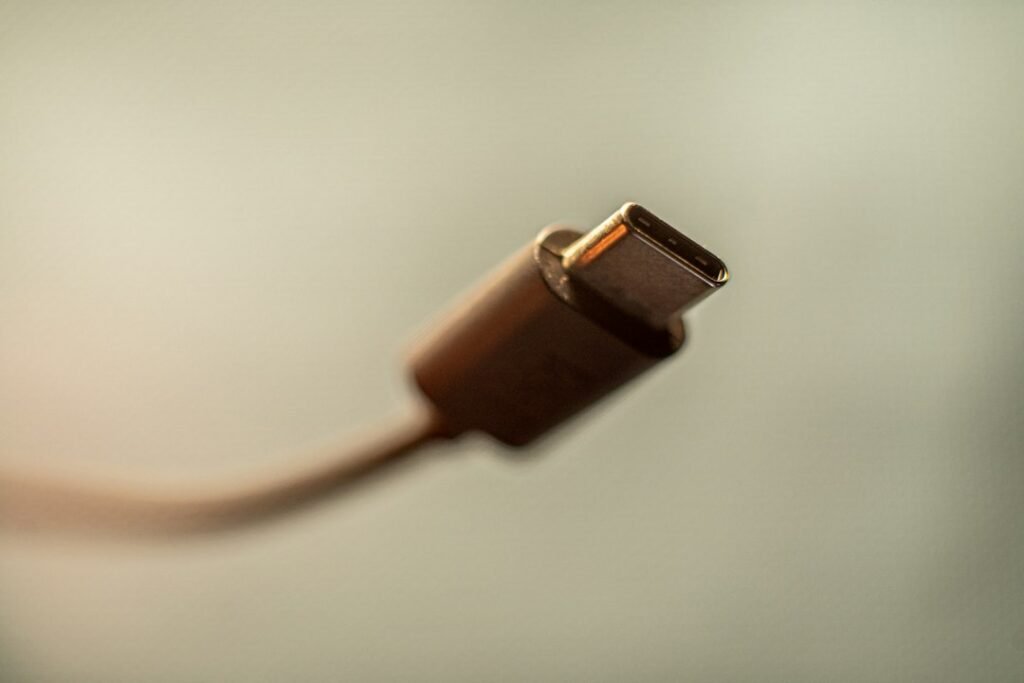
USB-C made the plug reversible, but it did not make every cable equal. Two cables with identical connectors can differ dramatically: one may charge a laptop at up to 240W while moving data only at old USB 2.0 speed, while another may handle an external SSD, a dock and a high-resolution display.
The safest way to shop is to treat power, data speed and video support as three separate specifications. A cable is only a match when it meets all three needs.
USB-C describes the connector, not the performance
“USB-C” tells you the shape of the plug. It does not, by itself, promise USB4, Thunderbolt, fast charging or monitor support. The USB Implementers Forum (USB-IF) now promotes clear performance labels that pair a data rate—such as 20Gbps, 40Gbps or 80Gbps—with a 60W or 240W power rating.
That distinction matters because a charging-focused cable can legitimately support 240W and still be limited to USB 2.0’s 480Mbps data rate. That is adequate for charging, syncing a phone or connecting a simple accessory, but painfully slow for moving large video files or backing up an SSD.
Read the two numbers separately
The first useful number is watts. USB-IF says compliant USB-C-to-USB-C cables should carry a 60W or 240W power marking. A 240W cable supports USB Power Delivery’s higher-power Extended Power Range, but the actual charge rate is still negotiated by the device and charger. A 240W cable cannot turn a 65W charger into a 240W one.
The second number is the maximum data rate. Common certified markings include 5Gbps, 10Gbps, 20Gbps, 40Gbps and 80Gbps. These are theoretical link rates, not guaranteed file-copy speeds; storage, controllers, protocol overhead and the computer’s port can all lower real-world throughput.
| What the cable says | What it is suited for | What it does not guarantee |
|---|---|---|
| 60W, no speed marking | Phones, tablets and lower-power laptops | Fast data or video |
| 240W, no speed marking | Higher-power laptops and gaming devices | Anything faster than USB 2.0 |
| 10Gbps / 60W | Portable SSDs, docks and everyday charging | Charging above 60W |
| 40Gbps / 240W | Fast storage, capable docks and high-power charging | That every connected port supports 40Gbps or every monitor setup |
| 80Gbps / 240W | Newest USB4 equipment with demanding data/display needs | A benefit on older 10Gbps or 40Gbps devices |
Video is a separate compatibility check
A USB-C plug also does not automatically mean that a cable-and-port combination can drive a monitor. Video may travel through DisplayPort Alt Mode, USB4 tunneling or Thunderbolt, depending on the hardware. The computer, cable, dock and display path all have to support the required mode and bandwidth.
For a monitor or dock, buy a cable whose packaging explicitly lists video support and the resolution/refresh-rate combination you need. A vague “USB-C charging cable” description is not enough. When replacing a cable supplied with a dock, monitor or capture device, the manufacturer’s specified replacement is often the least risky choice.
Choose for the job, not the highest number
For a bedside phone charger, a certified 60W cable is usually sufficient. For a 100W-class laptop, a 240W cable provides headroom and avoids the limits of a basic 60W cable. For external storage, prioritize 10Gbps or better before paying extra for more charging capacity.
A 40Gbps or 80Gbps cable makes sense for a high-end dock, very fast SSD or demanding display setup, but it will not make a slower port run faster. Shorter passive cables are also generally easier to certify for the highest speeds. Longer high-bandwidth cables may use active electronics and cost more, so check whether they support the exact USB4, Thunderbolt and power features you need.
A practical shopping checklist
- Check the device’s input: Find its maximum charging wattage and supported USB data standard.
- Check the charger: It must support the correct USB Power Delivery profile; the cable alone cannot add power.
- Match the data rate: For an SSD or dock, choose a cable rated at least as fast as the slowest port in the chain.
- Verify display support: Look for an explicit monitor resolution and refresh-rate claim, not just a USB-C logo.
- Prefer certified products: USB-IF’s certified product search lists devices that passed its compliance program.
- Keep the packaging: With visually identical cables, the printed specifications may be the only reliable way to tell them apart later.
The simple rule
Do not buy a USB-C cable based on the connector or wattage alone. Read the power and data markings independently, then confirm video support if a display is involved. USB-IF’s cable and connector guidance explains the 60W/240W labeling requirement, while its USB4 overview covers the high-bandwidth side of the standard.
Featured photo: Marcus Urbenz via Unsplash. This guide summarizes published specifications; individual cables were not independently tested.